Docs / Features
Notes on your desktop
Stick a note to your Windows, macOS or Linux desktop as its own small window.
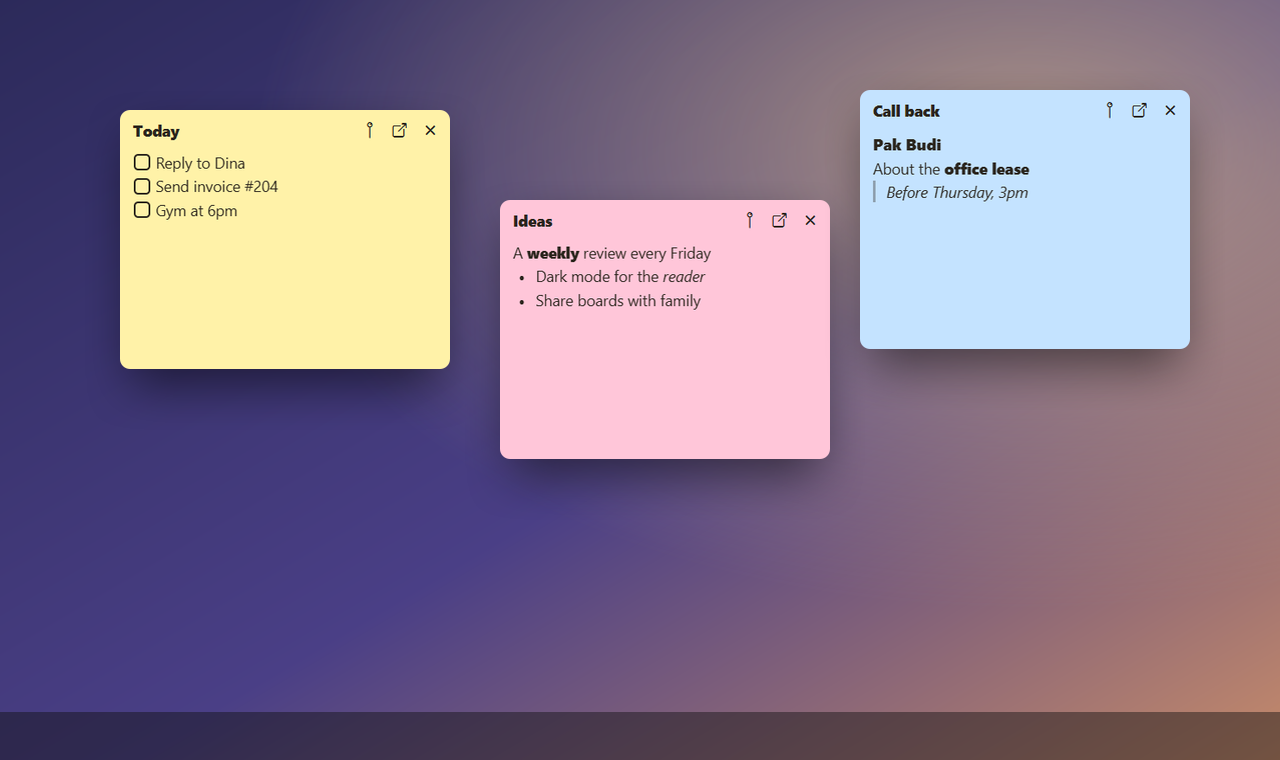
In the desktop app you can take a note off the board and stick it to your desktop, like a real sticky note on your monitor. It becomes a small window of its own that stays where you put it.
Stick a note to your desktop
Open a note and click the Stick to desktop button (the stacked-windows icon at the top), or right-click inside the note and choose Stick to desktop.
The note appears near the top-right corner of your screen. Stick more notes and they cascade so none hides another.
Use a desktop note
- Move it by dragging its title bar. Resize it from any edge.
- Write in it directly. There’s no toolbar to keep it small, but typing
-,[],**bold**and the keyboard shortcuts all work, and right-click → Format / Paragraph has every option. Changes are saved and synced as usual — even while the main window is closed. - Keep it on top of other windows with the pin button, so it stays visible while you work.
- Open in NoteOS (the arrow button) jumps to the note in the main window — for example to change its title or color.
- Remove from desktop (×) puts the note back on the board only. It isn’t deleted.
Right-click a desktop note for the same actions plus Copy note text.
Next time you start NoteOS
Notes you left on your desktop come back where you left them, with the same size and the same “keep on top” setting. The main window also remembers its size and position, and whether it was maximized.
Closing the main window
While at least one note is on your desktop, closing the main window doesn’t quit NoteOS — your desktop notes stay open. A NoteOS icon appears in the system tray (the notification area on Windows):
- Click it, or choose Open NoteOS, to bring the main window back.
- Show desktop notes brings all desktop notes to the front.
- Quit NoteOS closes everything. Your desktop notes return the next time you start NoteOS.
Once no notes are left on your desktop, the tray icon disappears and NoteOS behaves like a normal app again.
Hidden notes
A note with a hidden preview can’t be stuck to the desktop. If you hide the preview of a note that’s already on your desktop, the desktop note shows only its title and Preview hidden, and its text can’t be edited there.
Privacy
Desktop notes are part of the main app: they show the note the app already decrypted and send your edits back to it. Nothing extra is stored about them except their position on screen.